


Design Your Own Macropad With AI Auto-Layout

Hitting the same keys and toggling commands all day is incredibly tedious. A macropad can free up mental bandwidth and speed up your workflow—whether you’re designing PCBs, writing firmware, editing videos, or any other repetitive task. In this post, we’ll guide you through an existing macropad design in Flux so you can:
- Fork it instantly and use it as-is, or
- Tweak it to your heart’s content—add more keys, swap out the microcontroller, or rearrange the layout.
- Use AI Auto-Layout to handle routing automatically.
By the end, you’ll have a production-ready custom macropad you can actually order—and, if you’re up for it, share your unique spin with the Flux community.

Inside the Example Build
This example takes inspiration from the popular “Figma Creator Micro,” which was designed to speed up design software workflows. We wanted a similarly compact macropad with plenty of customization.
Key Components and Features:
1. Raspberry Pi Pico 2 (RP2350A)
- The latest Pico variant, provides more power and capability.
- Offers native USB HID functionality, so your custom macropad can be recognized as a keyboard.
2. External Flash Memory (W25Q32RVXHJQ)
- 3V, 32M-bit serial flash with dual/quad SPI & QPI.
- Useful if you need extra storage for more complex macros, animations, or data logging.
3. Two Rotary Encoders (PEC12R-2220F-S0024)
- Adds dial-based input for volume, scrolling, or continuous adjustments.
- Each encoder can also include a push-button switch, depending on the model.
4. Slide Potentiometer (PTA2043-2010CIB103)
- Provides smooth, precise adjustment—great for volume, brightness, or scrubbing through a timeline.
- Each “module” includes a Kailh PG1353 low-profile clicky switch, an RGB LED (WS2812-2020), and a diode.
- Using modules in Flux means one click = the entire key circuit. This modular approach simplifies duplication and future updates.

Layout & Automatic Ground Fill
We used Flux’s automatic ground fill to ensure easy, noise-free connections across the board. Smart vias also help optimize routing, especially in compact designs. That keeps your layout clean and production-friendly.
See the Schematic and PCB: Open/Clone the Example Project in Flux to explore the design step by step. If you want a no-fuss option, you can literally just fork and order it as-is.
Step 1: Fork the Example
- Open the Project: Click this link to open the project
- “Fork” in Flux: This copies everything—schematic, PCB layout, modules—into your workspace.
- If you love the project and want to manufacture it as is, feel free to skip to Step 5.
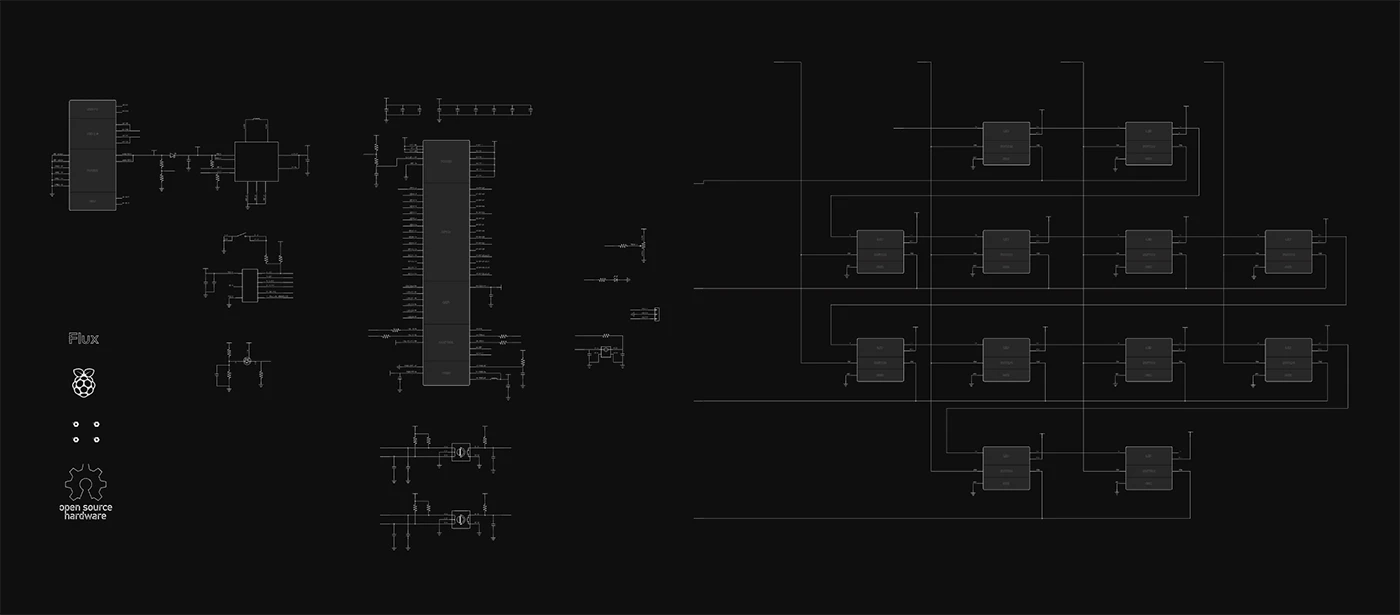
Step 2: Understand the Modules & Connections
Before you start tinkering, it helps to see how everything fits together. If you’re not sure why certain parts are included or how they’re wired, you can simply ask Flux Copilot, our AI assistant, right in the project.
Example Copilot Prompts:
@copilot can you explain how the Mechanical Key Module is wired to the Raspberry Pi Pico?
@copilot what’s the function of the external flash memory in this design?
@copilot can you outline how the two rotary encoders are connected?
@copilot which GPIO pins are currently free for additional keys or sensors?
You can also request a high-level overview of the entire project:

Copilot will respond with details about components, pin assignments, and even why certain parts were chosen, helping you understand the design before you dive into any major customizations.
Step 3: Customize the design
A quick way of personalizing this design would be to add some more keys. Each Mechanical Key Module is pre-built with the switch, diode, and LED. If you want more (or fewer) keys:
1. Copy the Module in the schematic.
2. Ask Copilot for an unused GPIO on the RP2350. Type:
@copilot Find a free GPIO Pin on the RP2350 where I can connect a new key
3. Let Flux Copilot handle the actual schematic wiring if you’d like. Type:
@copilot connect Key13 GPIO X
For the rotary encoders and slide potentiometer, you’ll see them already placed in the schematic. Feel free to move them around, switch to different pins, or remove them if you don’t need them.
Step 4: Arrange components and run AI Auto-Layout
Switch to the PCB editor to see the current footprint placements.
- Move Stuff Around: Want the Pico on the left edge for easier USB access? Just drag it.
- Add or Remove Key Modules: If you duplicated or removed keys in the schematic, you’ll see that reflected here.
- Run AI Auto-Layout: Click “Auto-Layout.” Flux’s AI engine will handle trace routing, ensuring a clean layout.
Repeat or tweak until the board shape, connector positions, and overall look match your preferences.

Step 5: Finalize & Order
- DRC Checks: Flux flags any design-rule violations in real-time. Address issues if they pop up (like overlapping components or unconnected nets).
- Ground Fill & Stitching: We rely on Flux’s automatic ground fill for noise reduction. No need to do it manually.
- Export Gerbers or Order Directly: Once satisfied, generate manufacturing files or send them straight to your chosen PCB board house.
That’s it! You’ll have your custom macropad PCB in hand in a couple of weeks—ready to solder and test.
Step 6: Program the Pico
We’ve included a MicroPython firmware example that handles debouncing, RGB lighting, rotary encoder tracking, and custom macros. You can tweak it however you like: add more key commands, change LED effects, or even integrate USB HID keyboard functionality.
Below is the full example code:
How to Flash:
- Put your Pico in bootloader mode. (Hold the BOOTSEL button while plugging it in via USB.)
- Drag-and-drop a .uf2 build of this code onto the Pico drive.
- Or use a MicroPython IDE (like Thonny) to upload the .py script directly.
We Want to See Your Mods!
A macropad is a fun, hands-on introduction to designing professional-grade PCBs with Flux—while still being small and easy to iterate on. Using modules, AI Auto-Layout, and built-in Copilot means you can move fast, experiment freely, and end up with a fully functional device you’ll actually use every day.
Ready to fork this design and customize the hardware, firmware, or both?
- Add More Keys: Throw in extra mechanical key modules.
- Go Wild with RGB: Make each key’s LED do something different.
- Try a Different Microcontroller: If you need more GPIO or different features.
- Share Your Build: We’d love to see build photos and code snippets.
Share your unique designs with the Flux community for a chance to be featured in an upcoming showcase!
We can’t wait to see your take on this build—happy designing!
More in Step-by-Step Projects & Templates

How to design and deploy a LoRa IoT sensor node with RP2040

Using AI to Design a Webcam: An End-to-End Example

40+ Hardware Projects You Can Build Over the Holidays

How to Design a Custom Keyboard PCB

Master DIY Electronics: Essential Guides to Arduino Projects

Revolutionizing IoT Design: Flux Brings Arduino-Based Matter Projects to Life

Harnessing the Power of Flux for Industrial Sensing Applications

PCB Design Tutorial: AI Pendant

Top 5 CES 2025 Hardware Projects You Can Build With Flux

Why you should start designing your PCB from a template

Never Start from Scratch Again: Introducing the New Project Launcher

Raspberry Pi Pico Schematic in 20 minutes using Flux Copilot

Agri.iO revolutionizes farming with Flux

He'd never designed a PCB. Now Tilt Tracker is taking pre-orders.

Design Your First PCB: 10 Popular Microcontrollers to Get Started

New NextPCB Templates For More Streamlined Manufacturing

Flux + Seeed: From Template to PCB in Minutes
Let’s start building.

Let’s build your idea together. All you need to do is describe what you want to make, or what problem you want to solve. Flux will work with you to make it a reality.
